Browser cookies are small pieces of data that websites store in users' browsers. They are commonly used to maintain login states, save user preferences, and store session information. Knowing how to view cookies helps developers debug websites and troubleshoot login issues, while also helping everyday users understand how websites retain local state.
This guide explains how to view cookies in Chrome, Microsoft Edge, and Firefox, along with important security considerations.
1. What Are Browser Cookies?
Cookies are data that websites store in browsers through HTTP responses or browser scripts. The browser determines when to store cookies and when to send them with requests according to rules involving the cookie's domain, path, security attributes, and expiration time.
Common uses include:
- Login state: Maintaining a user's login state when supported by the website's authentication mechanism.
- User preferences: Saving language, theme, and other personalization settings.
- Session management: Helping a website associate consecutive requests with the same session.
- Website analytics: Recording visits and interactions according to the website's configuration.
Cookies may contain ordinary preference data, session identifiers, or authentication credentials, so they should not be shared publicly.
2. How to View Cookies in Google Chrome

In Google Chrome, you can use Developer Tools to inspect cookies for the current website.
- Open the website you want to inspect.
- Press
F12, or useCtrl + Shift + Ito open Developer Tools. On macOS, the usual shortcut isCommand + Option + I. - Switch to the Application panel.
- In the left sidebar, find Storage → Cookies.
- Expand the relevant website domain.
- Inspect cookie names, values, domains, paths, expiration dates, and security attributes in the table on the right.
If the Application panel is not visible, open the additional-panels menu at the top of Developer Tools and select it.
3. How to View Cookies in Microsoft Edge
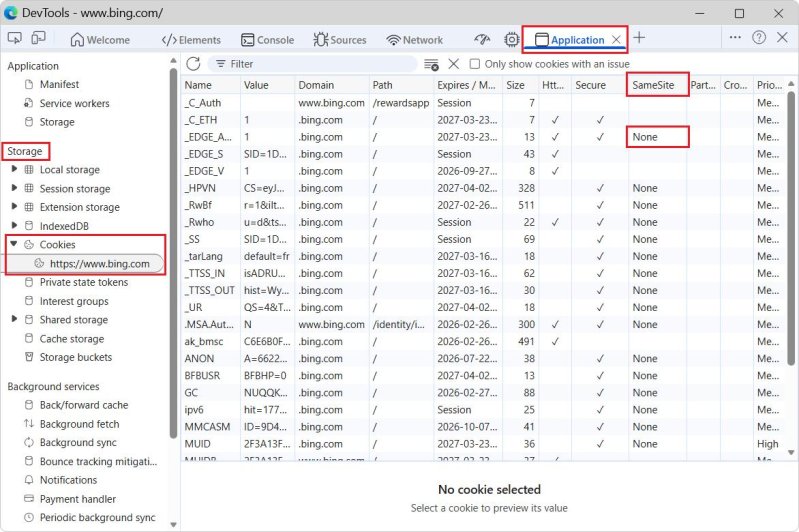
Edge is also based on Chromium, so the cookie inspection steps are very similar to those in Chrome.
- Open the target website.
- Press
F12to open Developer Tools. - Open the Application panel.
- Expand Storage → Cookies.
- Select the target website's domain to view its cookie records.
To troubleshoot login issues, you can also open the Network panel and select a request. Inspect the Cookie request header and the Set-Cookie response header. The former shows cookies included in the request, while the latter shows cookies the server is attempting to set.
4. How to View Cookies in Firefox
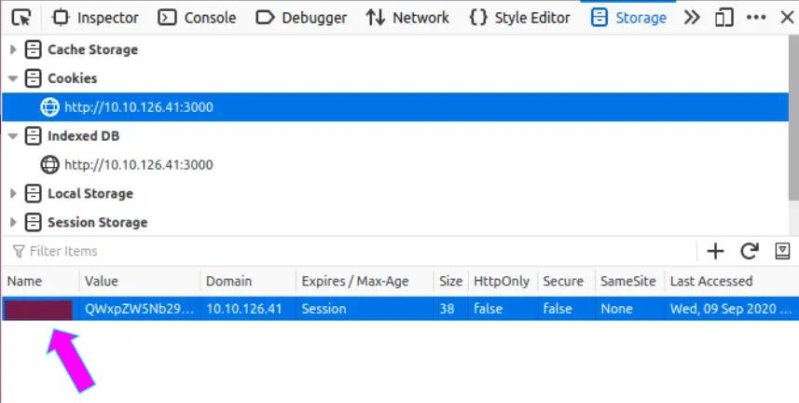
Firefox provides a storage inspection feature in its Developer Tools.
- Open the target website.
- Press
F12to open Developer Tools. - Switch to the Storage panel.
- Find Cookies in the left sidebar.
- Select the website to inspect cookie names, values, domains, paths, and expiration dates.
If the Storage panel is not visible, enable it from the Developer Tools panel selection menu.
5. What Do Common Cookie Fields Mean?
| Field | Description |
|---|---|
| Name | The cookie's name. |
| Value | The value stored in the cookie. |
| Domain | The domain or domain scope to which the cookie applies. |
| Path | The URL path to which the cookie applies. |
| Expires / Max-Age | The cookie's lifetime. |
| HttpOnly | Prevents ordinary webpage JavaScript from reading the cookie through document.cookie. |
| Secure | Generally restricts the cookie to HTTPS requests. |
| SameSite | Controls when cookies are sent with cross-site requests. |
Note that an HttpOnly cookie can usually still be viewed in Developer Tools, but ordinary webpage JavaScript cannot read it. Secure and SameSite do not encrypt cookie values; they impose restrictions on transmission and cross-site sending behavior.
6. Why Can't I See Some Cookies?
You may encounter the following situations when inspecting cookies:
- Different domain: The cookie belongs to another domain or subdomain, so you need to select the correct domain.
- Different path: The cookie's
Pathattribute limits the request paths to which it applies. - Not yet set: A website may create a cookie only after login, visiting a particular page, or completing a specific action.
- Expired: The browser may already have removed the expired cookie.
- HttpOnly restriction: Page scripts cannot read this type of cookie, although Developer Tools can usually display it.
- Browser privacy restrictions: Privacy settings or browser policies may restrict cookie storage and transmission.
To confirm whether a cookie is actually sent with a request, inspect the request in the Network panel rather than relying only on the storage list.
7. Security Precautions When Viewing Cookies
Cookies may contain session IDs, login-state identifiers, or other sensitive information. If an authentication-related cookie is obtained by someone else, it may sometimes be used to impersonate the session owner.
Follow these precautions:
- Do not publish complete cookie values in forums, screenshots, or public code repositories.
- Do not send your login cookies to strangers or untrusted websites.
- When troubleshooting, hide or redact the cookie's
Valuefield whenever possible. - If you suspect a cookie has been exposed, sign out, revoke the relevant session or change your credentials, and follow the website's available security procedures.
- Only inspect websites and data you are authorized to access.
Conclusion
The simplest way to view browser cookies is to open Developer Tools, go to the Application or Storage panel, and select the target website's Cookies section. The interfaces differ slightly between Chrome, Edge, and Firefox, but the general process is similar.
For website developers, inspecting the Cookie request header and the Set-Cookie response header in the Network panel is often more useful for diagnosing lost login states and incorrectly configured cookie attributes. Always protect cookie values to avoid exposing session information.